

The Shopify “App Bloat” Trap: How Too Many Apps Slow Down Your Store
A slow ecommerce store can lose customers in seconds!
According to Google research, 53% of mobile users leave a webpage if it takes more than three seconds to load. Website speed is no longer only a technical factor. It directly affects customer experience, conversions, and revenue.
For Shopify store owners, this problem often starts with growth.
A new store usually begins with a lightweight theme and a few essential tools. Then the owner starts adding apps:
- Product Review Apps.
- Email Marketing Tools.
- Upselling Apps.
- Wishlist Features.
- Chat Widgets.
- Loyalty Programs.
- Analytics Tools.
Every app solves a specific business problem. But over time, these additions can create a hidden performance issue known as app bloat.
App bloat happens when too many third-party apps add unnecessary scripts, code, and requests to a Shopify store. The result is slower pages, delayed interactions, and a weaker shopping experience.
TL;DR – Key Takeaways
- Why Stores Slow Down: Too many apps add extra scripts and code.
- Hidden Impact: App bloat affects speed, SEO, and conversions.
- Find the Problem: Audit apps using Shopify and PageSpeed Insights.
- Fix Performance Issues: Remove unused tools and optimize code.
- Improve Store Speed: Use smart Shopify performance optimization strategies.
Table of Contents
- What Is Shopify App Bloat?
- How Too Many Apps Affect Shopify Store Speed
- How To Identify If Your Shopify Store Has App Bloat
- How To Perform a Shopify App Audit
- How To Reduce Shopify App Bloat and Improve Store Performance
- Final Thoughts: Your Shopify Store Needs Balance, Not More Apps
- Eliminate App Bloat and Boost Shopify Performance with Ingenious Netsoft
This leads many merchants to ask:
Why is Shopify so slow after installing multiple apps?
The answer is usually not Shopify itself. The issue often comes from the number of external tools connected to the store and how those tools load resources.
A proper shopify performance optimization strategy focuses on finding unnecessary code, improving loading speed, and keeping only the features that genuinely support business growth.
What Is Shopify App Bloat?
Shopify apps help merchants add useful features like reviews, upselling, loyalty programs, and marketing tools without custom development.
However, problems begin when too many apps are installed without checking their impact on store performance.
Each app can add extra code, such as JavaScript files, tracking scripts, and external requests. A few essential apps usually work well, but too many unnecessary tools can increase loading time and create app bloat.
For example, a product page may need to load not only Shopify’s theme and product details but also review widgets, popup scripts, chat tools, and analytics trackers. Every additional element adds more work for the browser.
The goal is not to remove all apps. It is to keep only the apps that provide real value while improving your store’s speed and Shopify performance optimization.
How Too Many Apps Affect Shopify Store Speed
After understanding what app bloat means, the next question is: Why is Shopify so slow after installing multiple apps?
The answer lies in how these apps work behind the scenes. Most Shopify apps add extra resources to your storefront. While these resources help add features, too many of them can slow down the customer experience.
A store does not become slow because of one single app. The problem usually appears when multiple apps compete for loading space, browser resources, and external connections.
1. Extra JavaScript Slows Down Page Interaction
JavaScript helps apps display interactive features like:
- Product Recommendations.
- Review Sections.
- Pop-ups.
- Chat Widgets.
- Countdown Timers.
However, every script needs to be downloaded, processed, and executed by the browser.
When too many scripts load together, important actions may become delayed. For shoppers, this can appear as:
- Buttons Responding Slowly.
- Pages Feeling Less Smooth.
- Delayed Cart Interactions.
Google’s Core Web Vitals focus heavily on these user experience factors, especially Interaction to Next Paint (INP), which measures how quickly a page responds after a user interaction.
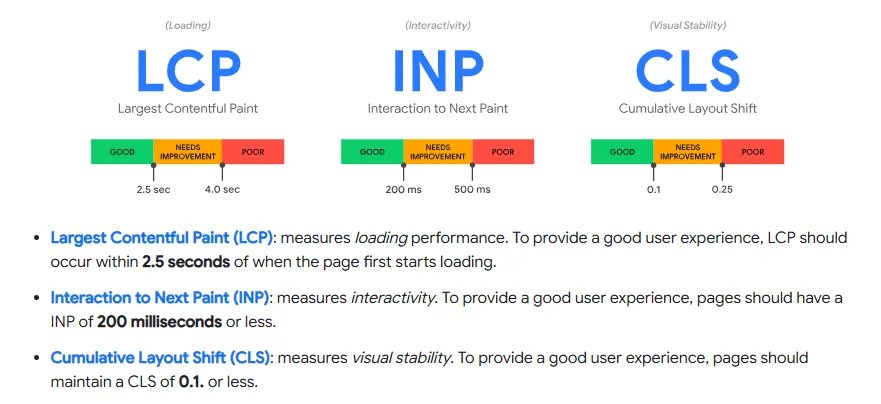
Source: Google Search Central, Core Web Vitals
A strong shopify performance optimization approach starts by reducing unnecessary scripts and improving how resources load.
2. Third-Party Requests Create Extra Waiting Time
Many Shopify apps do not store all their data directly inside your store. Instead, they communicate with external servers.
For example:
- A review app may request customer reviews from its own server.
- A chatbot may connect to another platform.
- A tracking tool may send data to an analytics system.
- Each connection adds another step before the feature appears.
When multiple apps make these requests at the same time, the browser has more tasks to complete before showing a fully interactive page.
This is one reason merchants often ask:
Why is Shopify so slow even when the theme is optimized?
The answer is often hidden third-party scripts running through installed apps.
3. Apps Can Load Where They Are Not Needed
One common performance mistake is allowing apps to run across the entire website.
For Example:
- A product review app is mainly useful on product pages.
- A cart upsell app is mainly useful during checkout.
- A newsletter popup may only be needed on landing pages.
However, some apps load their scripts across multiple pages, even when customers never use those features.
This creates un-necessary loading work.
Effective Shopify store optimization focuses on controlling where apps run instead of simply reducing the number of apps.
How To Identify If Your Shopify Store Has App Bloat
1. Your Mobile Speed Score Is Low
Use:
- Shopify Speed Report.
- Google PageSpeed Insights.
- Lighthouse.
Google’s PageSpeed Insights analyzes:
- Performance.
- Accessibility.
- Best practices.
- SEO factors.
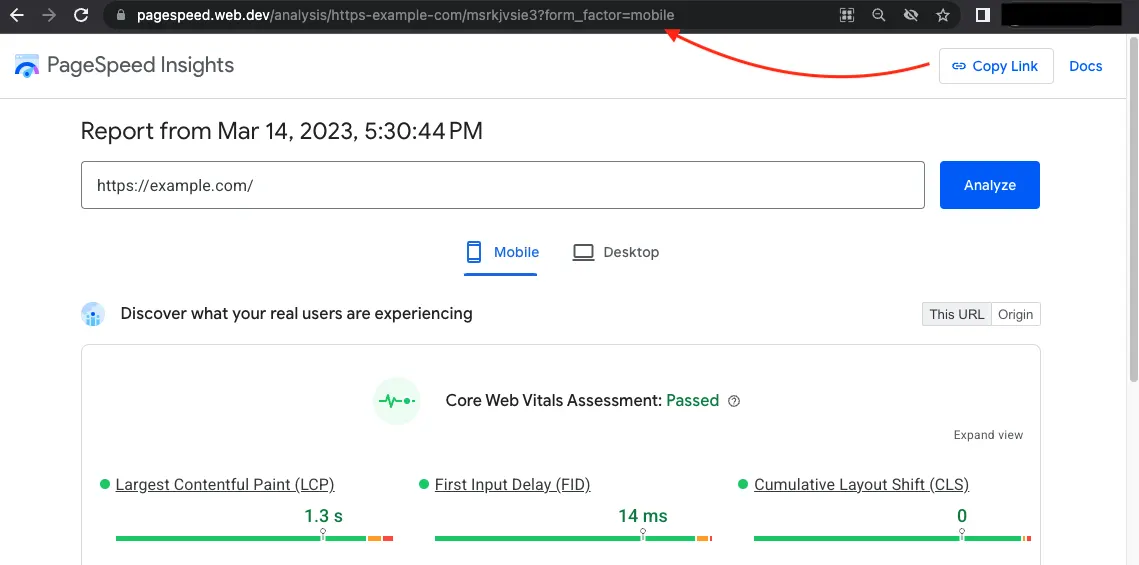
Website: https://pagespeed.web.dev/
A low score does not always mean your store is failing. It identifies areas where improvements are possible.
2. Your Store Became Slow After Installing Apps
Track your timeline!
Ask:
- When did the slowdown begin?
- Which apps were installed before that?
- Did page speed change after installation?
Many merchants ignore this connection.
They redesign themes or change hosting plans when the real issue is unnecessary scripts.
3. You Have Duplicate App Functions
This is one of the biggest causes of app bloat.
Examples:
Three separate apps for:
- Product Reviews.
- Customer Photos.
- Social Proof.
Two apps for:
- Email Capture.
- Popups.
Multiple apps for:
- Product Recommendations.
A good Shopify store optimization strategy focuses on reducing duplication. One powerful tool is often better than five smaller tools.
How To Perform a Shopify App Audit
A proper audit is the foundation of how to speed up Shopify store improvements.
Follow these steps
Step 1: Create an App Inventory
| App Name | Purpose | Monthly Cost | Revenue Impact | Decision |
|---|---|---|---|---|
| Review App | Product trust | $ | High/Low | Keep |
| Popup App | Lead generation | $ | High/Low | Review |
Step 2: Check App Performance Impact
Use:
- Shopify Speed Report: Shopify provides performance reports showing how themes, apps, and custom code affect storefront speed.
Reference: https://help.shopify.com/en/manual/online-store/web-performance
- PageSpeed Insights
Check:
- Mobile performance.
- JavaScript impact.
- Loading delays.
Step 3: Test Before Removing
Do not immediately delete apps.
Instead:
- Record Current Speed.
- Disable the App.
- Test Performance.
- Monitor Conversions.
An app that slows the website but increases sales may still be valuable.
The goal is not fewer apps. The goal is better-performing apps.
The Ghost Code Problem: Removing an App Does Not Always Remove Everything
Many merchants believe that uninstalling an app completely removes its impact.
However, some apps may leave behind:
- Code Snippets.
- Script Tags.
- Theme Modifications.
- Unused Files.
This leftover code can continue affecting performance even after the app is gone.
A Shopify app audit should include checking:
- Theme Files.
- App Embeds.
- Custom Code Sections.
- Script Injections.
Cleaning this technical leftover is an important part of how to speed up Shopify store improvements.
How To Reduce Shopify App Bloat and Improve Store Performance
1. Remove Apps That No Longer Provide Value
Many Shopify stores continue paying for apps they no longer use.
Common examples include:
- Old Marketing Campaigns.
- Unused Loyalty Programs.
- Duplicate Review Tools.
- Temporary Sales Apps.
- Testing Apps that Were Never Removed.
Before uninstalling any app, check:
- When was it last used?
- Does it generate sales?
- Is another tool performing the same function?
- Do customers interact with this feature?
A simple app cleanup can reduce unnecessary scripts and improve loading performance.
However, merchants should avoid removing apps only because they affect speed. The right approach is to compare performance impact with business value.
A review app that increases conversions may be worth keeping. A popup tool that collects very few emails may not be.
2. Choose Lightweight Apps Instead of Feature-Heavy Tools
Not every app is built the same way.
Some apps are designed to load only when needed, while others add multiple scripts across the entire storefront.
When selecting new apps, check:
- Developer Reputation.
- Customer Reviews.
- Update Frequency.
- Performance Feedback.
- Available Customization Options.
A lightweight app with fewer unnecessary features can often deliver better results than a large tool with features you never use.
This is an important part of Shopify store optimization because adding more features does not always create a better shopping experience.
3. Use Shopify’s Built-In Features Before Installing Apps
One common reason for app bloat is installing apps for features Shopify already supports. Before adding another tool, check whether Shopify already offers a solution.
Examples:
Instead of adding multiple basic tools for:
- Product Management.
- Discounts.
- Customer Accounts.
- Marketing Automation.
Explore Shopify’s native features first.
Native functionality usually integrates better because it does not require additional third-party scripts.
The fewer unnecessary connections your store has, the easier it becomes to maintain performance.
4. Optimize App Loading Locations
A major improvement comes from controlling where apps load. Not every feature needs to appear on every page.
For example:
Product Page
Useful:
- Reviews.
- Product Recommendations.
Not necessary:
- Checkout Upsell Scripts.
- Homepage Popups.
Homepage
Useful:
- Email Capture.
- Promotional Banners.
Not necessary:
- Product Review Widgets.
Reducing unnecessary page loading improves user experience and supports better shopify performance optimization.
5. Clean Your Shopify Theme Code Regularly
Apps often modify theme files when installed.
Over time, a store may collect:
- Unused App Snippets.
- Old Scripts.
- Extra Code Sections.
- Duplicate Tracking Codes.
These leftovers increase technical complexity.
A regular theme audit should include:
- Removing Unused Code.
- Checking App Embeds.
- Reviewing Custom Scripts.
- Updating Theme Files.
This is especially important for older stores that have installed and removed many apps over time.
How Many Shopify Apps Are Too Many?
There is no fixed number of apps that makes a Shopify store slow. A store with 30 lightweight apps can perform better than a store with five poorly optimized ones.
The better question is: Does every app provide enough value to justify its performance cost?
A healthy Shopify store usually has:
- Apps with a Clear Purpose.
- No Duplicate Functionality.
- Regular Performance Reviews.
- Clean Theme Code.
This approach creates a balance between functionality and speed.
Final Thoughts: Your Shopify Store Needs Balance, Not More Apps
Shopify apps help merchants grow. They make it easier to add powerful features without building everything from scratch.
The problem begins when apps are added without considering their long-term impact.
App bloat can increase loading time, create technical issues, and affect customer experience. But removing every app is not the solution.
The smarter approach is:
- Audit Your Existing Apps.
- Measure Performance Impact.
- Remove Unnecessary Tools.
- Keep Features that Improve Revenue.
- Continue Regular Shopify Performance Optimization<.
A faster store is not created by having fewer features.
It is created by having the right features working efficiently.
Eliminate App Bloat and Boost Shopify Performance with Ingenious Netsoft
A slow Shopify store can impact customer experience, conversions, and search visibility. Ingenious Netsoft helps businesses identify performance issues and create a faster, cleaner, and more efficient Shopify experience
Our Shopify optimization approach includes:
- App Performance Audit: Identify unnecessary, duplicate, or resource-heavy apps affecting your store speed.
- Code and Script Optimization: Remove unused scripts, clean theme code, and reduce unnecessary third-party requests.
- Shopify Speed Optimization: Improve loading times, Core Web Vitals, and overall storefront performance.
- Custom Shopify Solutions: Replace excessive app dependency with tailored features that improve scalability and efficiency.
- Ongoing Store Optimization: Continuously monitor performance and optimize your Shopify store as your business grows.
With the right strategy, you can maintain powerful ecommerce features without letting app bloat slow down your Shopify store.


