
Google Merchant Center Guide: How to Set Up, Fix Feed Errors, and Increase Sales
When you open your online store, you want your products to appear right at the top of Google when shoppers are ready to buy. That prime spotlight is powered by Google Merchant Center, the engine that sends your product photos, prices, and stock levels directly to Google Search, Images, and YouTube.
Here is why your product setup matters more than your advertising budget:
The E-Commerce Reality Check
Google Shopping has historically accounted for a major share of retail search advertising. Adthena’s research found that Google Shopping ads represented 76.4% of retail search ad spend and generated 85.3% of clicks in its analysis of US and UK retail advertising.
Search is also becoming more conversational. Google notes that people are increasingly asking questions and searching conversationally, making accurate and detailed product information more important for product discovery.
If your Google Merchant Center details are missing key information, like materials, correct sizing, or product identifiers, Google simply skips your store and shows your competitor’s items instead.
Why read this guide?
Uploading your products to Google is only the first step. This Google Merchant Center guide breaks down the exact steps to fix common feed errors, write clear product descriptions that Google favors, and unlock free placements across Google so you can attract more paying customers without wasting ad spend.
TL;DR
- Google Merchant Center helps businesses manage product data for eligible Google shopping experiences.
- A complete setup includes business details, website verification, product data, shipping, and return information.
- Keep product titles, descriptions, prices, images, availability, and identifiers accurate.
- Common issues include missing attributes, price mismatches, invalid GTINs, image problems, and product disapprovals.
- Fix data and eligibility issues before focusing on advanced feed optimization.
- Clear product data and accurate website information can improve product understanding.
- Free listings can provide eligible products with unpaid visibility across supported Google surfaces.
- Larger catalogs can benefit from supplemental feeds, custom labels, and automated feed management.
- Merchant Center does not guarantee rankings, traffic, or sales.
Table of Contents
- What Is Google Merchant Center and How Does It Work?
- What Does Google Merchant Center Do?
- Which Businesses Can Use a Merchant Center?
- How to Set Up Google Merchant Center Step by Step
- What Is a Google Merchant Center Product Feed?
- What Information Does a Product Feed Contain?
- How to Optimize Product Titles and Descriptions for Google Shopping
- Google Merchant Center Feed Errors: What They Mean and How to Fix Them
- Google Merchant Center Feed Optimization: What Should You Improve First?
- How to Increase Sales Using Google Merchant Center
- Advanced Google Merchant Center Strategies for Growing E-commerce Stores
- How Ingenious Netsoft Can Help With Google Merchant Center
- FAQ
What Is Google Merchant Center and How Does It Work?
Google Merchant Center is a platform that allows businesses to provide Google with information about the products they sell. Merchants can submit details such as product names, prices, images, availability, and landing-page URLs.
Google uses this information to understand products and determine where eligible product offers may appear, including free listings and Shopping ads. Product eligibility depends on the submitted information, applicable policies, country, destination, and other factors.
What Does Google Merchant Center Do?
A Merchant Center account helps businesses manage product information used across eligible Google shopping experiences. The information may include:
- Product titles and descriptions.
- Product prices.
- Stock availability.
- Product images.
- Product-page links.
- Brand and product identifiers.
- Product categories.
- Shipping information.
- Return-policy details.
- Product variants, such as color and size.
This information is submitted through a product data source, such as a file, supported e-commerce integration, or an automated connection.
The quality of the submitted information matters. Missing attributes, incorrect values, and differences between the feed and website can affect product eligibility or how products appear.
How Does Google Use Your Product Data?
Google uses the product information you provide to understand what you sell and where your products may appear across its shopping surfaces. The process starts with your product data and continues through Google’s checks, matching, and display of eligible products.
The process can be understood as follows:
Website catalog → Product data source → Merchant Center processing → Product eligibility checks → Eligible Google surfaces → Product landing page → Purchase
For example, a store selling running shoes may submit the product’s brand, model, size, color, price, image, and stock status. Google can use these details to understand the offer and match it with relevant shopping searches.
However, Merchant Center does not guarantee impressions, clicks, rankings, or sales. Even eligible products may not appear for every relevant search.
Google Merchant Center vs. Google Ads vs. Google Analytics
Google Merchant Center, Google Ads, and Google Analytics each serve a different purpose. Merchant Center manages your product data, Google Ads helps you promote products through paid campaigns, and Google Analytics tracks what visitors do on your website.
| Platform | Primary purpose | How it supports e-commerce |
|---|---|---|
| Google Merchant Center | Manage product information and eligibility | Supplies product data for eligible shopping experiences |
| Google Ads | Manage paid advertising campaigns | Helps businesses promote products through paid campaigns |
| Google Analytics 4 | Analyze website and customer behavior | Helps measure traffic, engagement, and conversions |
These platforms serve different purposes. Merchant Center manages product information, Google Ads manages advertising activity, and GA4 helps analyze website behavior.
Connecting them does not mean that Merchant Center manages advertising budgets or independently records every purchase. Measurement depends on the relevant integrations, tracking configuration, and attribution settings.
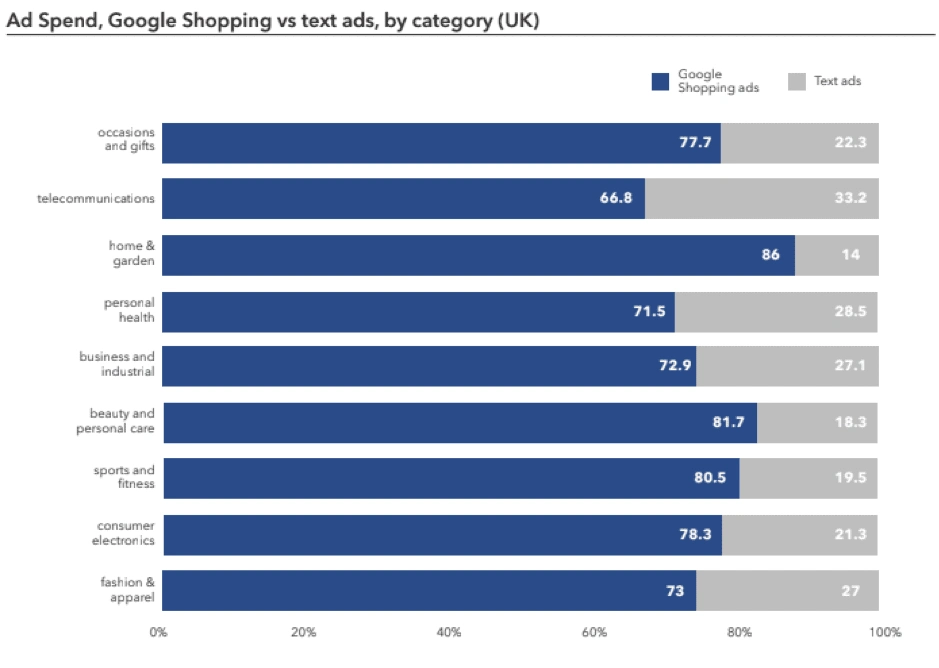
Image Source: https://www.smartinsights.com/digital-marketing-strategy/the-rise-of-google-shopping/
What Do You Need Before Setting Up Google Merchant Center?
Before beginning your Google Merchant Center setup, prepare the information that Google and your customers need to understand your business and products.
| Requirement | Why it matters |
|---|---|
| E-commerce website | Gives shoppers a place to view and purchase products |
| Verified website ownership | Establishes control over the website |
| Product catalog | Provides the products you want to submit |
| Accurate prices and stock | Reduces data mismatches |
| Product images | Helps shoppers understand what they are buying |
| Shipping information | Communicates delivery costs and conditions |
| Return policy | Helps customers understand return options |
| Business details | Supports transparency and account configuration |
| Product identifiers | Helps identify products where applicable |
Google’s product requirements can differ according to the product category, destination, and country. Review the relevant product data specification rather than assuming that every attribute is required for every product.
Which Businesses Can Use a Merchant Center?
Merchant Center may be suitable for:
- Online retailers.
- Direct-to-consumer brands.
- Businesses with physical stores.
- Eligible merchants using supported e-commerce integrations.
- Businesses selling products through eligible shopping destinations.
Eligibility depends on the business location, products, website, applicable policies, and available Google features.
A store should also confirm that its products are allowed under Google’s shopping policies. Certain products and business models may have additional restrictions.
How to Set Up Google Merchant Center Step by Step
If you are learning how to set up Google Merchant Center, follow the process below. The exact interface and available options may change, so use Google’s current account instructions when completing the setup.
Step 1: Create or Access Your Merchant Center Account
Start by opening Google Merchant Center and signing in with the Google account you want to use for your business.
Provide the requested business information, including:
- Business name.
- Business location.
- Website details.
- Relevant business information.
Use consistent business details across your website and account. This makes it easier to manage the account and investigate problems later.
Step 2: Verify and Claim Your Website
First, verify your website to show Google that you own or manage it. Then, claim the verified website in the Merchant Center to connect it to your account.
Before continuing, check that:
- The website belongs to your business.
- The product pages are accessible.
- The website address is correct.
- The store provides a clear way for customers to purchase products.
If another account has already claimed the website, you may need to resolve the ownership issue before proceeding.
Step 3: Configure Business Information
Add your business details to the Merchant Center so Google can identify your business and apply the right product and shopping settings. Depending on your business and target market.
This may include:
- Business details.
- Customer support information.
- Shipping settings.
- Return-policy information.
- Website information.
- Relevant product-destination settings.
Shipping and return information are particularly important because shoppers need to understand the conditions of a purchase before completing an order.
Step 4: Choose Your Product Data Source
Choose how you want to add your product information to the Merchant Center, such as through an e-commerce platform, Google Sheets, or a product feed file.
| Product data source | Best suited for |
|---|---|
| E-commerce platform integration | Stores using a supported platform |
| Google Sheets | Smaller catalogs or manually managed products |
| Scheduled fetch | Businesses maintaining a feed at a website URL |
| File upload | Merchants managing structured product files |
| Merchant API | Businesses with technical resources and automated systems |
Google supports product files in formats such as tab-delimited text and XML. The right option depends on catalog size, technical resources, and how frequently product information changes.
For a small catalog, a spreadsheet may be manageable. For a large catalog with changing prices and inventory, an automated integration may reduce manual work.
Step 5: Select Your Product Destinations
Merchant Center supports different ways of making product information available. Two important destinations are:
- Free listings: Eligible products may appear across supported Google surfaces without requiring a Shopping ad bid.
- Shopping ads: Eligible products can be used in paid advertising campaigns managed through Google Ads.
Other destinations may be available depending on the business, country, and product type.
Enabling a destination does not guarantee that your products will appear. Google uses submitted product information and other systems to determine eligibility and matching.
Step 6: Submit Your First Product Feed
Once your product data source is ready, connect it to Google Merchant Center so Google can import your product details and check them for errors or missing information.
- Select the appropriate product-data source.
- Provide the required product information.
- Upload or connect the feed.
- Check whether Google can process the data.
- Review product status and diagnostics.
- Correct any issues that appear.
Do not assume that a successful upload means every product has been approved. File processing and product eligibility are different stages.
Step 7: Review the Account for Issues
After submitting products, review the account’s product status and issue information.
Look for:
- Missing attributes.
- Invalid values.
- Product disapprovals.
- Price mismatches.
- Availability problems.
- Image issues.
- Website problems.
- Policy warnings.
The Needs attention area and issue details can help you identify which products require action. Google also provides diagnostic information for product-data problems.
What Is a Google Merchant Center Product Feed?
A Google Shopping feed is a structured collection of product information submitted to Google. Each product contains attributes that describe the item.
For example, a running-shoe product might include:
- Product ID.
- Brand.
- Product title.
- Description.
- Price.
- Availability.
- Product image.
- Product URL.
- Size.
- Color.
- Product identifier.
Google uses product data to understand products and match them with relevant queries. Accurate data also helps prevent display problems and disapprovals.
What Information Does a Product Feed Contain?
A product feed can contain basic information and additional details that depend on the product.
| Attribute | Example |
|---|---|
| Product ID | shoe-001 |
| Title | Men’s Running Shoes, Blue |
| Description | Lightweight running shoes with a breathable upper. |
| Price | 59.99 USD |
| Availability | in_stock |
| Brand | Example Brand |
| Product URL | https://example.com/products/running-shoes |
The product information should match the actual item and the information shown on its landing page.
Essential Product Feed Attributes
The following table presents common attributes used in a Google Shopping feed.
| Attribute | Example | Purpose |
|---|---|---|
| id | shoe-001 | Identifies the product |
| title | Men’s Running Shoes Blue | Describes the product |
| description | Product details and features | Provides product context |
| link | Product-page URL | Directs shoppers to the product |
| image_link | Product-image URL | Provides the main image |
| price | 59.99 USD | Shows the product price |
| availability | in_stock | Indicates stock status |
| brand | Example Brand | Identifies the brand |
| gtin | Valid product identifier | Helps identify eligible products |
Required attributes can vary. For example, apparel products may need additional information about size, color, age group, or gender, depending on the applicable requirements.
Google’s official product data specification should be used as the final reference when preparing a feed.
Additional Attributes That Can Improve Product Understanding
These attributes give Google more details about your products and can help shoppers understand what you are selling. The attributes you need will depend on your product type and catalog.
Depending on your catalog, useful attributes may include:
- google_product_category.
- product_type.
- color.
- size.
- material.
- pattern.
- condition.
- sale_price.
- shipping.
- custom_label_0 through custom_label_4.
These attributes serve different purposes.
For example, google_product_category helps describe a product using Google’s category structure. product_type can represent your own category hierarchy. Custom labels can help organize products for campaign management.
Additional attributes are not automatic ranking guarantees. Their value depends on whether they accurately describe the product and meet the relevant requirements.
How to Optimize Product Titles and Descriptions for Google Shopping
Good Google Merchant Center optimization begins with clear product information. A title should help shoppers understand the product quickly, while the description should provide useful details.
Adding keywords repeatedly is not a substitute for accurate product data.
How to Write Better Product Titles
A product title should tell shoppers what the product is without making them read the full description. Include details such as the brand, product type, model, size, color, and key features when they are relevant.
For example, “Shoes” gives very little information. A title such as “Nike Air Zoom Running Shoes, Men’s, Black” tells shoppers exactly what they are looking at.
Keep every detail accurate and relevant to the actual product. Adding information that does not apply to the product can mislead shoppers and create product data issues.
How to Write Product Descriptions That Match Search Intent
A good product description should quickly tell shoppers what the product is, what it offers, and what they can expect when they buy it.
Focus on details that help shoppers make a decision, such as:
- Key specifications.
- Materials used.
- Size and dimensions.
- Main features.
- Compatible uses.
- Relevant product benefits.
- Accurate product information.
Keep the description factual and avoid claims you cannot support, such as “guaranteed results” or “the best product for everyone.”
If you sell products in regulated categories, such as health and wellness, make sure your descriptions also follow the applicable Google Shopping policies.
Product Title Example: Weak vs. Improved
| Weak title | Improved title |
|---|---|
| Shoes | Nike Air Zoom Running Shoes, Men’s, Black |
| Amazing Kitchen Product | Stainless Steel Vegetable Chopper, 5-Blade Manual |
| Blue Bag | Women’s Leather Shoulder Bag, Navy Blue, Adjustable Strap |
These examples show how specific product information can improve clarity. The improved titles should still match the actual products.
How to Avoid Keyword Stuffing in Product Feeds
Keyword stuffing means adding excessive or irrelevant search terms to product information.
For example:
“Blue shoes running shoes best shoes cheap shoes men’s shoes buy shoes online”, this does not help shoppers understand the product
A better approach is to describe the product naturally: “Men’s blue running shoes with a breathable upper and cushioned sole”.
Use relevant terms where they accurately describe the item. Google requires product data to follow its formatting and quality rules, and misleading information can create problems.
Google Merchant Center Feed Errors: What They Mean and How to Fix Them
Google Merchant Center feed errors can prevent products from being processed correctly, limit eligibility, or cause inaccurate information to appear.
The first step is to identify the exact issue. Do not change several unrelated attributes at once without understanding the problem.
Where Can You Find Product Feed Errors?
Depending on the current Merchant Center interface, merchants can review:
- Product overview.
- Needs attention.
- Product details.
- Data-source diagnostics.
- Issue details.
- Account-level notifications.
Google’s issue information helps explain which products are affected and what needs to be corrected.
Common Google Merchant Center Errors
| Error or issue | Likely cause | Practical fix |
|---|---|---|
| Missing required attribute | Important product information is absent | Add the required attribute |
| Incorrect price | Feed and website show different prices | Synchronize product and website pricing |
| Product unavailable | Product page cannot be accessed | Check URL, redirects, and website availability |
| Invalid GTIN | Identifier is incorrect or improperly formatted | Verify the manufacturer’s identifier |
| Missing image | Image URL is absent or invalid | Add an accessible product image |
| Incorrect availability | Stock status differs from the website | Update the feed and inventory system |
| Missing product in supplemental feed | Product ID does not match the primary feed | Use the correct product ID |
| Invalid product category | Category value is incorrect | Review Google’s product taxonomy |
| Item data is too large | Data exceeds the relevant limits | Reduce unnecessary content and check formatting |
| Policy disapproval | Product or website violates a policy | Review and resolve the stated issue |
Google identifies missing or incorrect attributes, invalid identifiers, poor images, incorrect categories, and conflicting feed and website information as common product-data problems.
How to Fix Price and Availability Mismatches
Price and stock information should match what shoppers see on the product page. If your feed says a product costs ₹2,000 but the website shows ₹2,300, Google may identify a mismatch.
To investigate:
- Check the price in the feed.
- Open the product landing page.
- Check whether the price changes by location, currency, or variant.
- Review tax and shipping settings where relevant.
- Check whether the feed is outdated.
- Synchronize the product information.
- Review the issue again after processing.
Automatic item updates may help in supported situations, but they do not replace accurate primary product data.
How to Fix Product Page Unavailable Errors
If Google cannot access a product page, it may not be able to verify the product information, which can affect its listing status. Check that the page URL works correctly and that Google can access the page without errors.
To investigate:
- Open the submitted product URL.
- Confirm that the page is publicly accessible.
- Check for broken links and redirect problems.
- Review server errors.
- Confirm that the product has not been removed.
- Check whether the correct variant URL was submitted.
- Correct the URL or website issue.
- Allow Google to process the updated information.
A product page should provide the information needed to understand and purchase the product. Google provides troubleshooting guidance for landing-page and product-data issues.
How to Fix Invalid or Missing GTIN Errors
A GTIN is a unique number used to identify a product. If your product has a GTIN, enter the correct number in your product data so Google can identify the product accurately.
If a GTIN is not available for your product, follow Google’s requirements instead of adding a made-up number.
Remember:
- Do not invent GTINs.
- Check the identifier against the manufacturer’s information.
- Use the correct brand.
- Review the relationship between GTIN, brand, and MPN.
- Do not use a random number simply to fill the field.
Google explains that incorrect or conflicting product identifiers can affect product data quality and eligibility.
How to Fix Missing Image or Low-Quality Image Issues
Product images should clearly represent the item being sold. Use clear, high-quality images that show the actual product and match the product information on your website.
Check whether:
- The image URL works.
- Google can access the image.
- The image represents the product.
- The image meets the relevant size requirements.
- Promotional overlays are absent where prohibited.
- The image is not a thumbnail or an unclear version of the product.
Google’s image requirements differ by product type. For example, Google identifies minimum image dimensions for non-apparel and apparel products and sets limits for image file size and resolution.
What to Do When a Product Is Disapproved After Fixing the Error
Fixing the error does not always remove the disapproval immediately. Google may need to review the updated product data before the product becomes available again.
After making changes:
- Confirm that the underlying problem has been fixed.
- Check whether the updated data has been processed.
- Review the issue details again.
- Follow Google’s instructions for requesting a review, where applicable.
- Check whether the product remains disapproved.
Do not repeatedly request reviews without correcting the underlying issue. For account-level problems, Google may provide a warning period and specific instructions before further enforcement.
Google Merchant Center Feed Optimization: What Should You Improve First?
Effective Google Merchant Center optimization starts with the problems most likely to affect product eligibility and data accuracy. Improving a title is useful, but it should not take priority over a product that cannot be processed or has an incorrect price.
The Feed Optimization Priority Matrix
| Priority | Problem | Recommended action |
|---|---|---|
| Critical | Product disapproval | Resolve the stated policy or data issue |
| High | Incorrect price or availability | Synchronize feed and website |
| High | Missing product identifiers | Correct available identifiers |
| Medium | Weak product titles | Improve clarity and specificity |
| Medium | Missing relevant attributes | Add accurate product details |
| Medium | Poor images | Improve image quality |
| Ongoing | Outdated inventory | Maintain reliable updates |
How to Decide Which Products Need Attention First
If you have a large catalog, focus on the products that can have the biggest impact on your traffic and sales first. Start with products that have feed errors, high impressions but low clicks, or strong sales potential.
If your catalog is large, start with products that have:
- Strong revenue potential.
- Existing impressions.
- Relevant clicks.
- Good conversion potential.
- Healthy profit margins.
- Reliable stock availability.
- Serious errors.
- Seasonal demand.
For example, a product with high demand and a price mismatch may deserve attention before a low-traffic product with a minor title issue.
A Simple Feed Optimization Decision Tree
Does the product have a disapproval or critical data issue?
Yes: Resolve the issue first.
No: Continue to the next question.
Are the product’s impressions low?
Yes: Review product relevance, titles, attributes, demand, and eligibility.
No: Continue to the next question.
Does the product receive clicks but few purchases?
Yes: Review the landing page, price, shipping, product information, and checkout.
No: Continue monitoring and testing.
This process helps separate technical problems from product-presentation and conversion problems.
How to Increase Sales Using Google Merchant Center
Businesses often want to increase Google Shopping sales by improving product visibility. However, visibility is only one part of the buying journey. A useful strategy combines accurate product data, eligible shopping destinations, relevant product presentation, and a website that supports purchases.
Use Free Listings to Expand Product Reach
Free listings allow eligible products to appear across supported Google surfaces without requiring an advertising bid.
Depending on eligibility, products may appear on:
- Google Search.
- Google Shopping.
- Google Images.
- Google Lens.
- YouTube.
- Google Maps.
- Gemini.
- Other supported product experiences.
Free listings can support both online and local shopping experiences. They do not guarantee that every product will appear or receive traffic.
Improve Product Data Before Increasing Ad Spend
Before increasing your paid Shopping budget, make sure your product data is accurate and complete. This helps ensure that your budget is not being spent on products with avoidable feed or listing issues.
Before increasing paid Shopping budgets, check whether:
- Products are disapproved.
- Prices are accurate.
- Stock information is current.
- Product pages are accessible.
- The correct products are being promoted.
- Shipping information is clear.
- Product titles and images accurately represent the items.
Increasing advertising spend cannot solve every product-data problem.
Use Promotions and Sale Pricing Correctly
Promotions and sale prices can make a genuine offer more noticeable to shoppers when your business is eligible to use them. They can also show the original and discounted price, helping shoppers understand the value of the offer before they click.
Before adding promotional information:
- Confirm that the original price is accurate.
- Ensure that the sale price is valid.
- Review the applicable promotion requirements.
- Avoid misleading discount claims.
- Keep the feed and website consistent.
A promotion should give shoppers useful information rather than create confusion.
Improve Product Reviews and Ratings
Reviews give shoppers more information about a product or seller before they make a purchase. They can help shoppers compare options and feel more confident about what they are buying.
It is important to distinguish between:
Product ratings: Feedback about a specific product.
Seller ratings: Feedback about the retailer or shopping experience.
Review features have eligibility and data-source requirements. Merchants should use authentic reviews and follow Google’s applicable policies.
Reviews can support customer confidence, but they do not guarantee higher rankings or sales.
Improve Product Images and Landing Pages
A product listing can bring shoppers to your website, but the product page needs to give them enough information to make a purchase decision. It should clearly show the product, price, key details, availability, and an easy way to complete the purchase.
Review:
- Product image quality.
- Mobile usability.
- Product specifications.
- Price visibility.
- Stock information.
- Shipping details.
- Return information.
- Checkout clarity.
These improvements can support the shopping experience, although no individual change guarantees more conversions.
Use Local Inventory Features for Physical Stores
Businesses with physical stores can use local product features to show shoppers which products are available at nearby locations. This can help connect online product searches with in-store purchases.
These features can help communicate information such as:
- Product availability at a nearby store.
- Store location.
- Store hours.
- Directions.
- Product price.
- Approximate distance.
Availability depends on country, business eligibility, setup, and Google’s supported features.
Advanced Google Merchant Center Strategies for Growing E-commerce Stores
After completing the basic Google Merchant Center setup, larger stores may need more structured feed management.
How to Use Supplemental Feeds
A supplemental feed provides additional product information that can complement a primary feed. It may be useful when merchants want to update or add selected attributes without rebuilding the entire primary data source.
For example, a merchant may use a supplemental feed to add:
- Custom labels.
- Additional product details.
- Selected category information.
- Other supported attributes.
The product IDs must match the products in the primary feed. If the IDs do not match, the supplemental information may not apply correctly.
How to Use Custom Labels for Product Segmentation
Custom labels can help merchants organize products for campaign management. They allow you to group products based on factors such as best sellers, profit margins, seasonal demand, or price ranges, making it easier to manage and evaluate specific product groups.
Possible segments include:
- High-margin products.
- Best sellers.
- Seasonal products.
- Clearance inventory.
- Price ranges.
- Business priorities.
For example:
| Custom label | Example value |
|---|---|
| custom_label_0 | best_seller |
| custom_label_1 | high_margin |
| custom_label_2 | winter_collection |
| custom_label_3 | under_50 |
| custom_label_4 | clearance |
How to Manage Product Variants Correctly
Each variant should have its own accurate product data while remaining connected to the same product group. Use attributes such as item_group_id, color, size, and material consistently so Google can understand the relationship between variants.
Relevant attributes may include:
- id.
- item_group_id.
- color.
- size.
- material.
- Other product-specific variant attributes.
For example, a shirt available in three colors and four sizes may have multiple product variants. Each submitted variant should have accurate information.
Do not combine different products into one listing if the data does not accurately describe the offer.
How to Manage Multiple Product Data Sources
A store may use a primary feed, supplemental feed, and automated integration. Each source should have a clear role, and product IDs should remain consistent across sources. This helps prevent conflicting or overwritten product information.
To avoid conflicts:
- Keep product IDs consistent.
- Know which source supplies each attribute.
- Monitor update schedules.
- Check whether information is being overwritten.
- Review errors after major catalog changes.
A clear ownership process helps prevent situations where the marketing team, development team, and catalog manager assume someone else is responsible for the feed.
How to Prepare for Merchant Center API Changes
Businesses using automation should monitor Google’s current Merchant API documentation. Google may update API methods, requirements, or supported features, so relying on outdated documentation can cause integration issues. Before making changes, review the latest documentation and test updates before applying them across the full product catalog.
Before making technical changes:
- Review the current API documentation.
- Check supported methods and attributes.
- Confirm authentication requirements.
- Test changes on a limited set of products.
- Monitor processing and product status.
- Keep a rollback plan for major changes.
Do not rely on old tutorials without checking whether the relevant API and account features are still supported.
How Ingenious Netsoft Can Help With Google Merchant Center
Google Merchant Center works best when your product data, website, SEO, and Shopping campaigns are properly aligned. Ingenious Netsoft provides eCommerce SEO, technical SEO, PPC, and eCommerce development services to support these areas.
The team can help with:
- Product feed optimization: Improve product titles, descriptions, images, and attributes for Shopping campaigns.
- eCommerce SEO: Optimize product, category, and other key pages for better search visibility.
- Technical SEO: Address technical issues such as crawlability, broken links, structured data, site speed, and mobile optimization.
- Shopping campaign support: Optimize product categories, best-selling products, bids, and campaign structure based on performance.
With these services, businesses can address product feed and website issues as part of a broader eCommerce strategy.
FAQ
What is Google Merchant Center used for?
Is Google Merchant Center free to use?
Do I need Google Ads to use the Merchant Center?
How do I set up Google Merchant Center for Shopify or another e-commerce platform?
How long does Google Merchant Center take to approve products?
Why are my products not showing on Google Shopping?
How do I fix a Google Merchant Center product disapproval?
What is the difference between a primary feed and a supplemental feed?
How often should I update my product feed?
Can Google Merchant Center increase sales without paid ads?


