
How To Give Delegate Access To Google Tag Manager?
Google Tag Manager (GTM) is a robust tool that simplifies the management of tracking codes – commonly known as tags on your website or mobile app. These tags deliver valuable insights into user behavior, help evaluate the performance of your advertising campaigns, enhance website analytics, and collect important data about your audience.
With GTM, you can effortlessly add, update, and control tags without the need to alter your website’s code directly, making the process faster, more efficient, and easier to manage.
Table of Contents
Adding a person to the Google Tag Manager Account level
Adding or changing the account permissions for someone on the account level in Google Tag Manager is pretty straightforward.
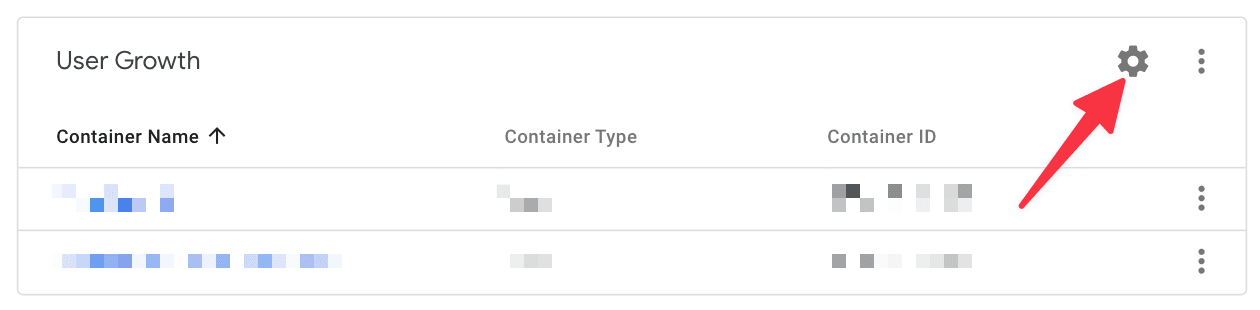
Step 1: First, go to https://tagmanager.google.com/, log in, and click the gear icon of the container to which you want to change the settings.
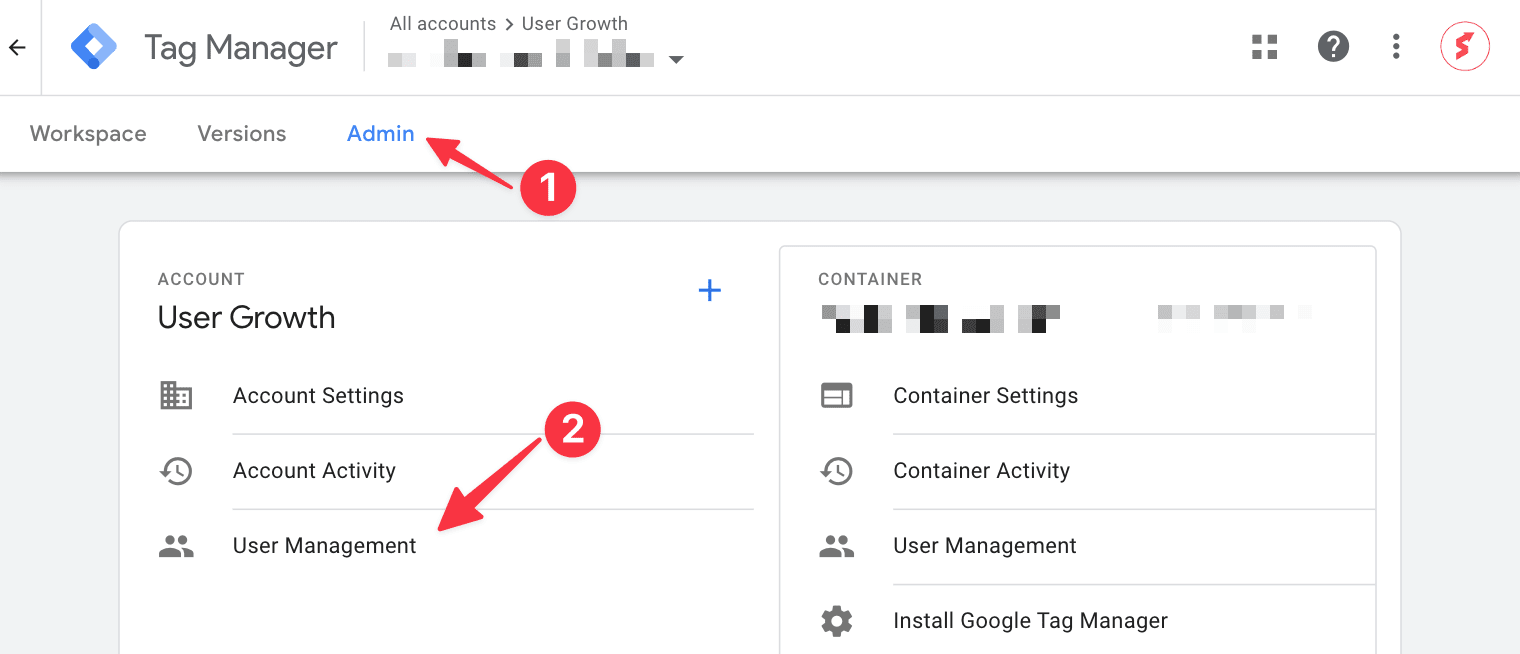
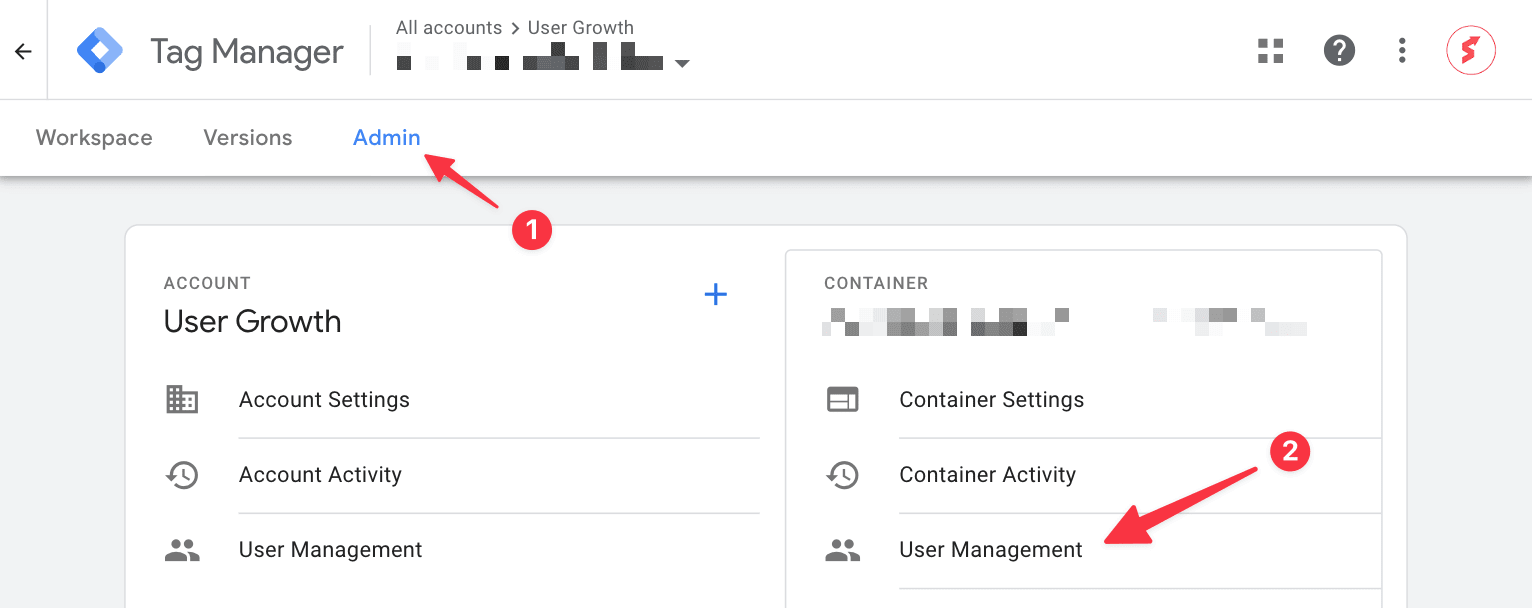
Step 2: If you’re not automatically on the Admin tab, click Admin (1), and then click User Management (2) under the Account column.
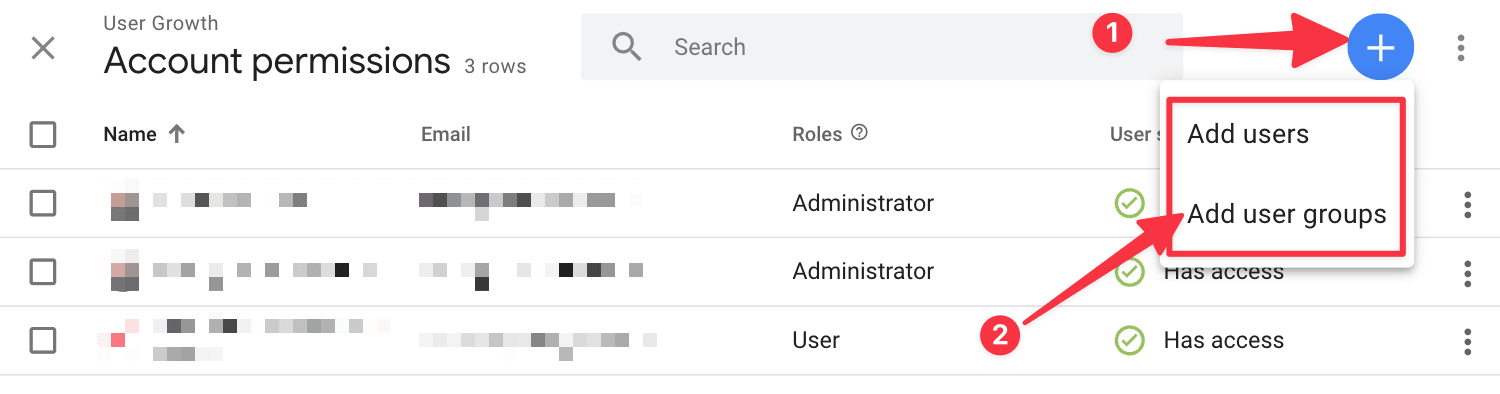
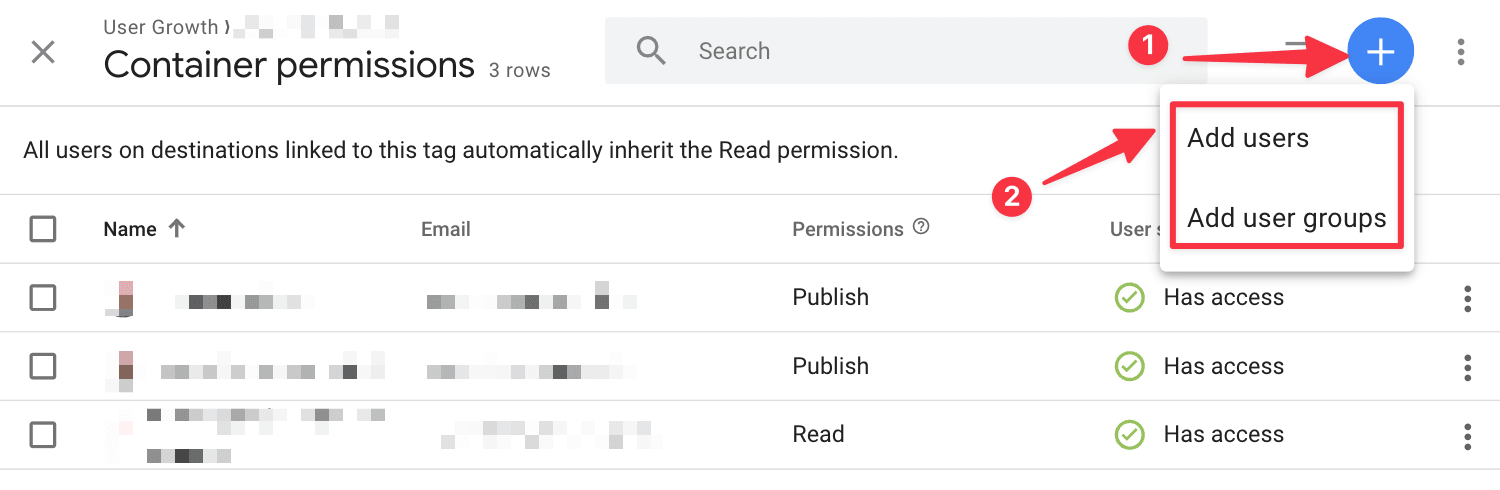
Step 3: If you want to add a new user at the account level, select the plus icon in the top right corner (1) and choose either “Add users” or “Add user groups” (2). In this case, we’re choosing “Add users” (2).
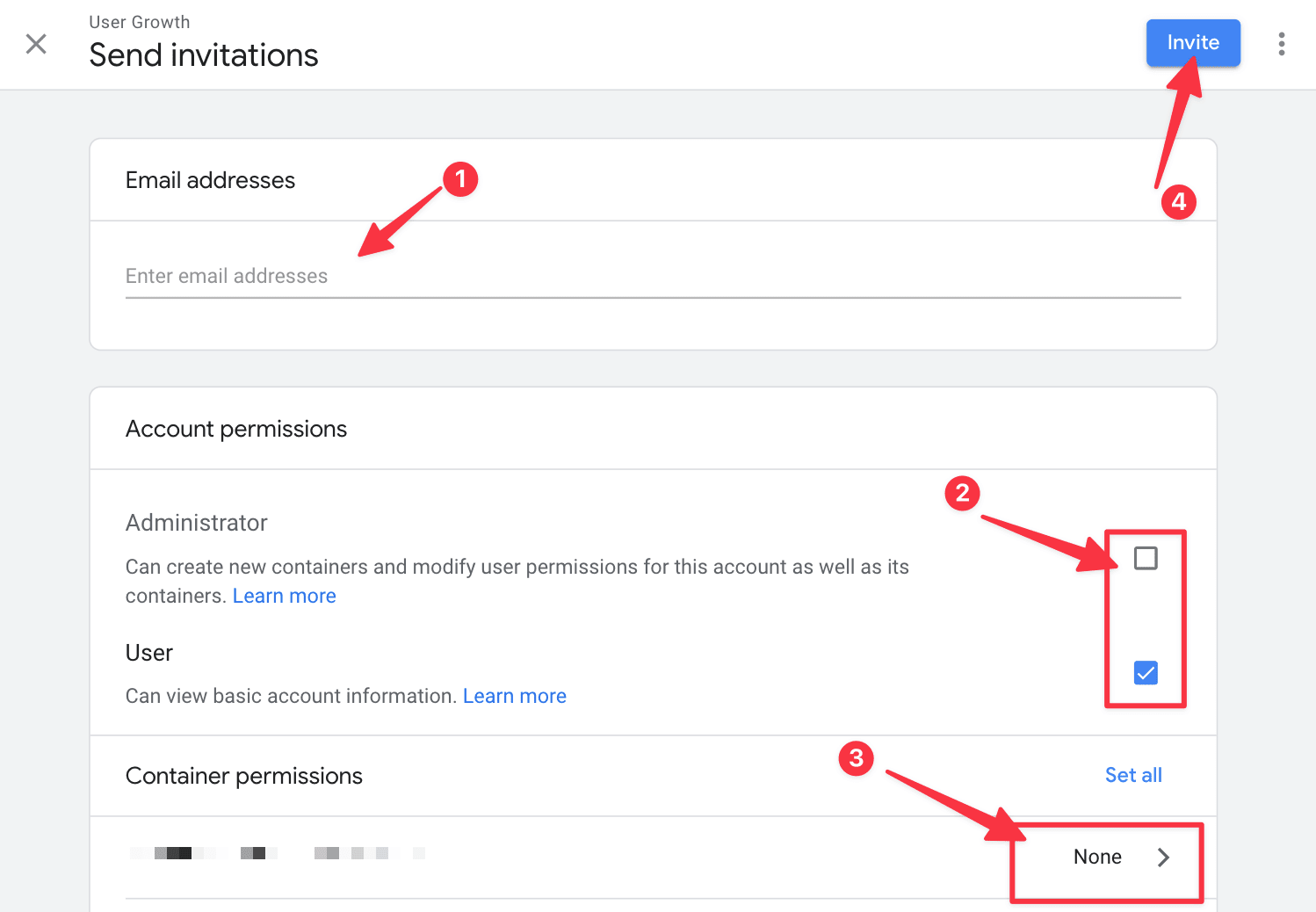
Step 4: Enter the email address (1) of the person or agency you want to share access with and select the Account permissions (2) and optional Container permissions (3) you want to share with the person or organization. After that press invite (4) to invite the person into your Google Tag Manager account.
Sharing Access to Google Tag Manager with Container Permissions
If you’d prefer not to grant someone full access to your entire Google Tag Manager account, you can limit their access to a specific container instead. This is managed through what’s known as Container Permissions.
Container permissions let you control exactly what a person or agency can see and do within a single container. There are five levels of access you can assign:
- No Access – The person won’t see the container at all in their account.
- Read – Allows the user to view the container and browse existing tags, triggers, and variables, but not make any changes.
- Edit – Includes all Read permissions plus the ability to create workspaces and edit tags, triggers, and variables. However, edits cannot be published.
- Approve – Includes Edit permissions and allows the user to create container versions (grouping multiple changes together) but not publish them.
- Publish – Grants full control. The user can read, edit, approve, and publish container versions, making changes live on the site or app.
If you want to give someone access to just one container, you can do so by setting the appropriate container-level permission. Here’s how:
Step 1: First, go to https://tagmanager.google.com/, login, and click the gear icon of the container to which you want to change the settings.
Step 2: If you’re not automatically on the Admin tab, click Admin (1), and then click User Management (2) under the Account column.
Step 3: If you want to add a new user at the container level, select the plus icon in the top right corner (1) and choose either “Add users” or “Add user groups” (2). In this case, we’re choosing “Add users” (2).
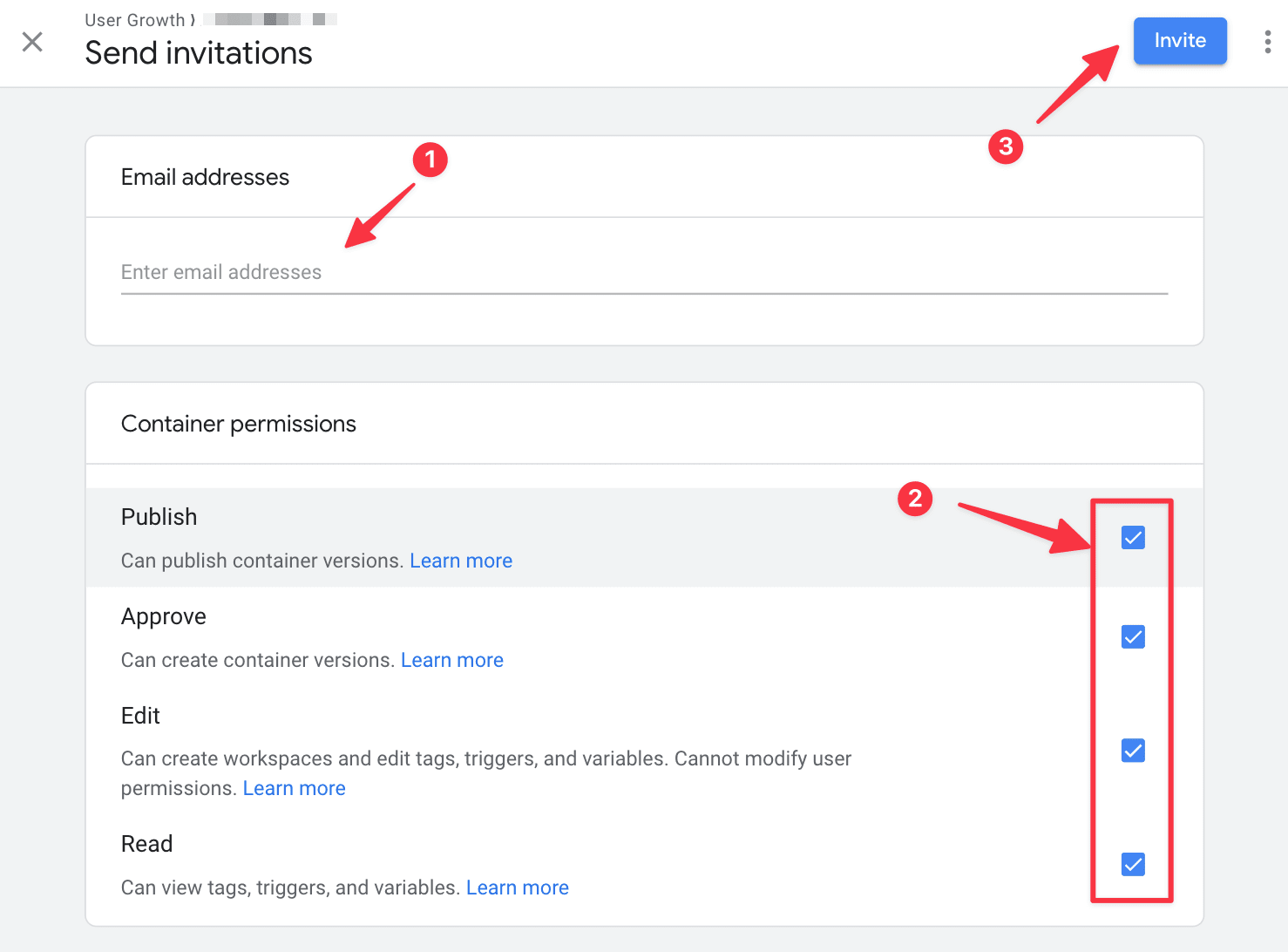
Step 4: Now enter the email address (1) and select the appropriate container permissions (2), by selecting them with the checkboxes below. Click invite (2), and you’re all done.
How to Edit User Permissions in Google Tag Manager
Changing a user’s permissions in Google Tag Manager is simple:
- Go to the Admin section in your Google Tag Manager account.
- Choose User Management at either the Account or Container level, depending on where you want to make changes.
- Find the person whose permissions you want to change, then click their name or the three dots on the right.
- Select the new access level you want them to have and save.
How to Request Access to Google Tag Manager (for Agencies or Freelancers)
Unfortunately, there’s no built-in “request access” option in GTM, unlike platforms such as Facebook Business Manager.
If you’re working with a client, you’ll need to give them the email address linked to your Google account. The client can then grant access to that email by adding it through the methods described above.


