
How To Give Delegate Access To Google Search Console?
Working on SEO with your in-house team, agency, or freelancers? You’ll probably need to grant them access to your Google Search Console account. This guide walks you through the different permission levels, explains how to add new users, and covers how to update or remove existing users when needed.
User Types and Roles in Google Search Console
When you grant access in Google Search Console, you’re essentially adding someone to a Property, either an entire domain (e.g., leadsie.com, including all subdomains) or a specific URL prefix (e.g., leadsie.com/blog).
Each Property has at least one verified owner, but you can add up to 100 non-owner users and multiple additional owners. Here’s how the roles break down:
Owners: Typically, the person who first set up the Property, but you can add more owners anytime. Both verified and delegated owners share the same permissions.
Verified Owner: Must prove control of the site (usually by adding a verification tag or adjusting site code). Also, can add or remove other verified owners.
Delegated Owner: Assigned without the need for verification tokens on the website. Plus, holds the same permissions as a verified owner.
Users: Can view data and take limited actions, but cannot add or manage other users.
- Full User:
Has access to all property data and some advanced features, such as submitting sitemaps or disavowing links. - Restricted User:
Has view-only access to most data, including performance reports.
Associated Users: External accounts you’ve authorized to perform specific actions without accessing your Search Console data directly (e.g., linking your Google Ads account).
How to Assign the Right Permission
Owners
- Keep this role for people you absolutely trust: business partners, co-founders, content managers, or in-house SEO leads.
- Owners can add/remove users, deindex URLs, and even delete the entire Property.
Users
- Agencies, teammates, and freelancers actively working on your SEO can be added as Full Users.
- Content writers or occasional contributors can be added as Restricted Users for view-only access.
How to add a user to your Google Search Console
If you’re an Owner of a property, simply follow the screenshots and steps outlined below. If you are not an Owner, jump to the last section for instructions on requesting access to Google Search Console.
Step 1. Go to Google Search Console. If you’re not signed in yet, click on Start Now and log in. You’ll be redirected to the dashboard.
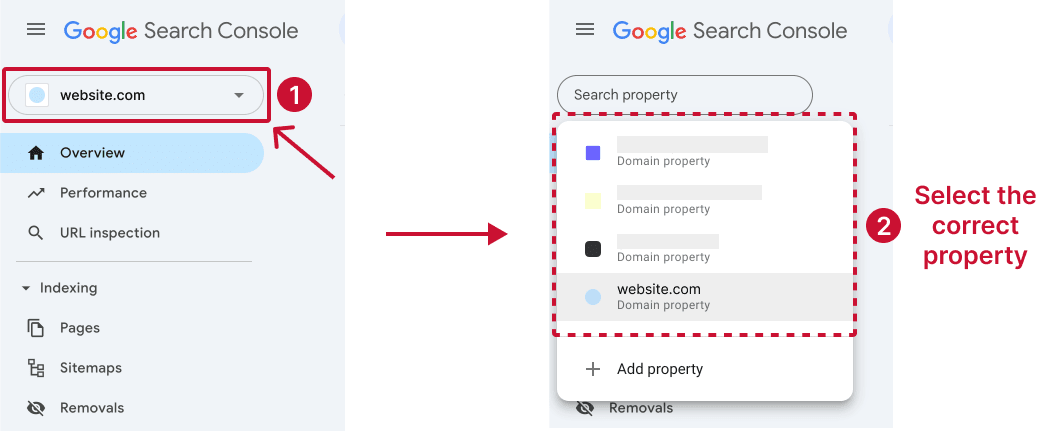
Step 2. If you manage multiple properties, check that you’re in the correct one. Need to change properties? On the left-hand menu, click on the name of the current property you’re in. This will expand the dropdown list. Select the property you want to add a user to.
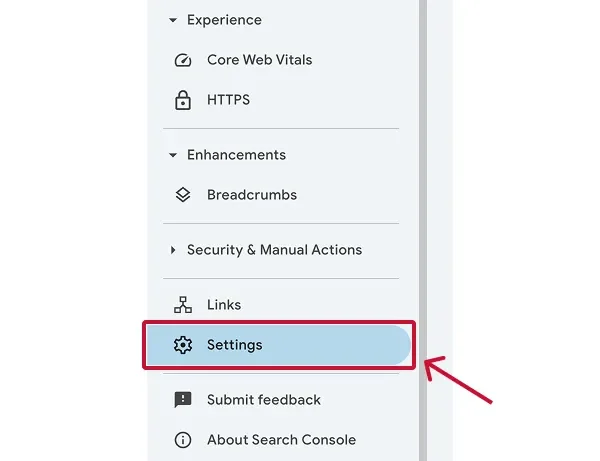
Step 3. Now, scroll down in the left-hand panel. Click Settings.
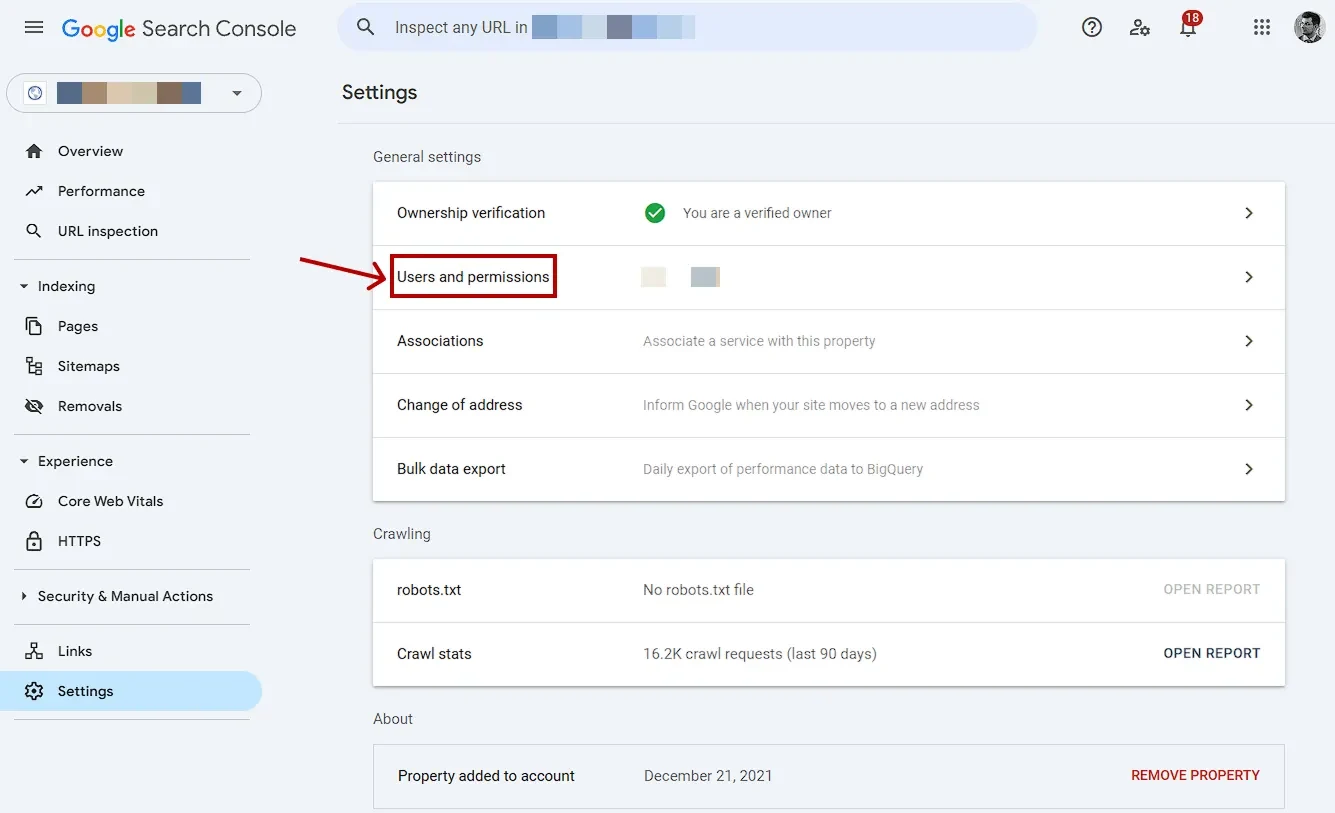
Step 4. Under General Settings, click Users and Permissions, or get there using this link.
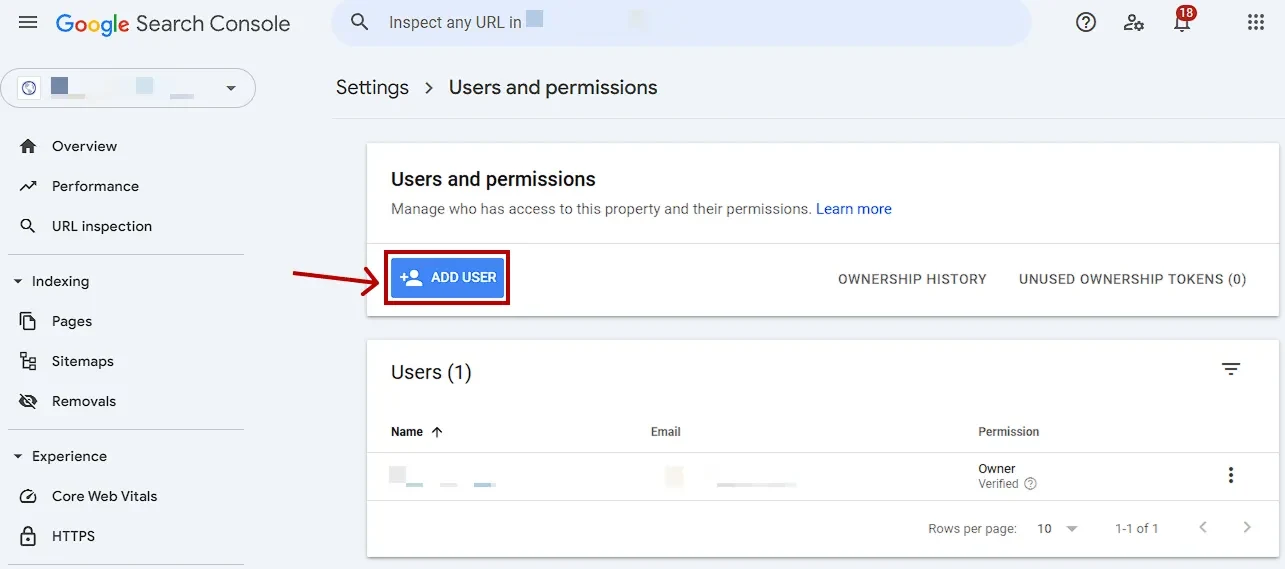
Step 5. This screen shows all current users and their access levels. Click the blue Add User button.
Step 6. A popup will appear. Type in the email address of the person you want to add. Then, choose their permission level (Owner, Full, or Restricted) based on their role within your website.
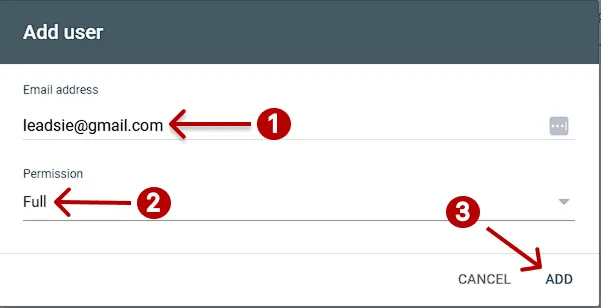
Step 7. Click Add, and you’re done.
Removing users or changing permissions
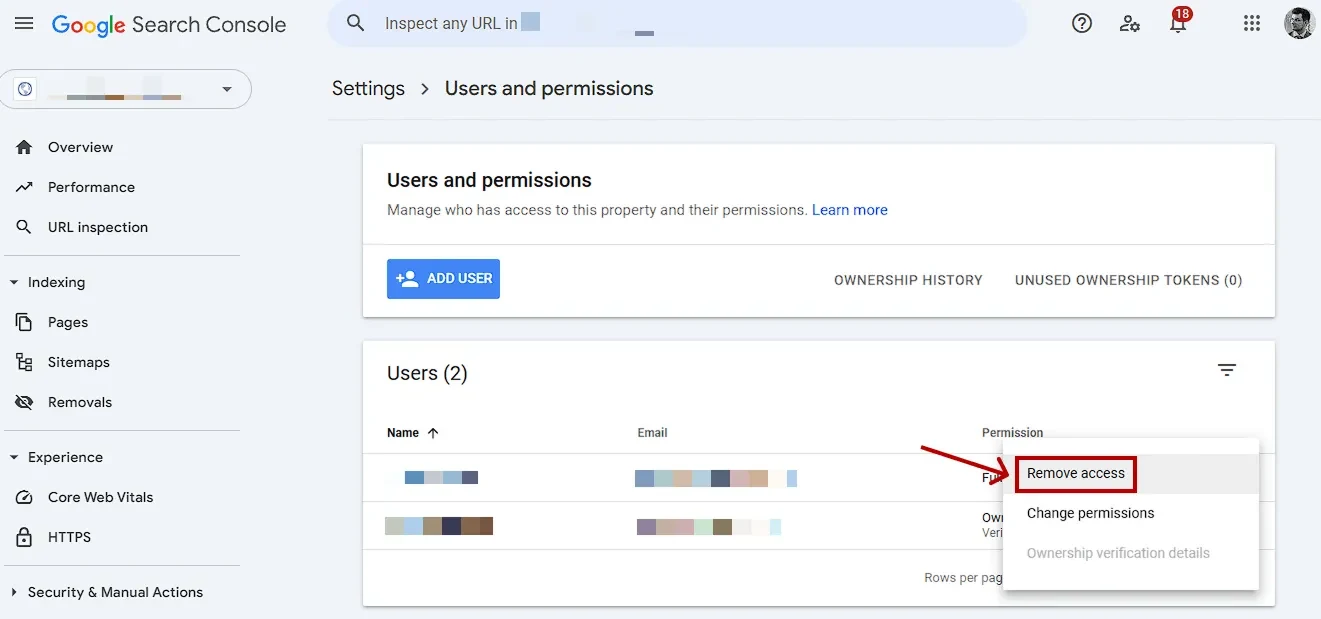
Only the Owners of a Property can remove a user or another owner!
To remove a user or owner:
- Go to the property in Google Search Console.
- Go to Users and Permissions.
- Click the three-dot icon next to the user, then select Remove access.
- Then, click Remove User in the pop-up to confirm.
Need Help with Your Google Search Console?
We’ve supported hundreds of organizations with everything from setting up their Search Console properties to optimizing permissions, reports, and integrations. If you need any assistance with Search Console setup, data insights, or troubleshooting, we’re here to help don’t hesitate to reach out.